This is the detailed Smart STB guide. If you are not sure which app or login type your device needs, start with our IPTV setup hub for Canada and come back here for the step-by-step. Our apps guide explains how Smart STB compares with the other TV-store apps.
Smart STB — published today as Smart STB+ by Smart Software Platform Solution (smart-stb.net) — makes a smart TV or streaming device behave like a set-top box that loads your provider’s portal. It contains no channels of its own: the developer states that it does not offer any TV services, streams or playlists. This guide covers which devices run it, how to install and activate it, and how to add your IPTV Canada Neo service.
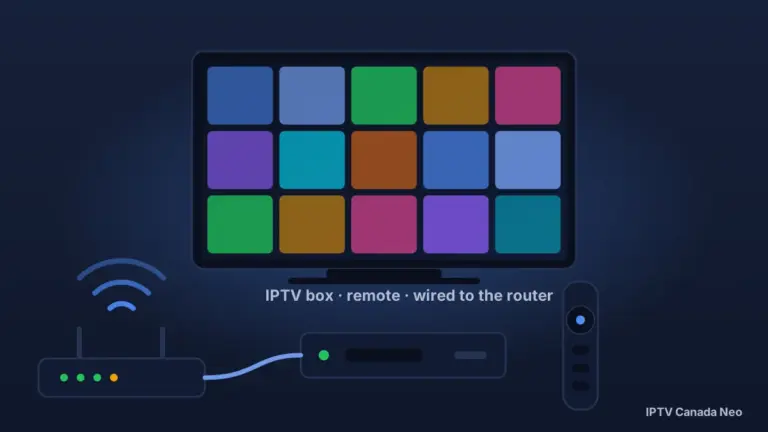
If you are deciding between a smart-TV app and a dedicated device, our guide to IPTV boxes in Canada explains when a box is the better buy.
Which devices run Smart STB
According to the developer’s site, Smart STB+ is available for:
- Samsung smart TVs from 2020 onwards, from the Samsung app store.
- LG smart TVs running webOS 3 or newer, from the LG Content Store.
- Android TV, Google TV and Android phones and tablets, from Google Play (listed as Smart STB+).
- Apple TV, iPhone and iPad, from the App Store (listed as Smart STB).
- Amazon Fire TV and Chromecast with Google TV, from their own app stores.
Install it only from the store built into your device, and check that the developer shown is Smart Software Platform Solution (SSPS) with the website smart-stb.net.
Install and activate Smart STB
- Open your TV’s or device’s app store, search for Smart STB (or Smart STB+), and install it.
- Open the app, read the disclaimer and accept the Terms of Service with OK, then confirm. The developer’s 7-day trial activates and the Portal menu opens, holding only a demo portal at first.
- Press OK on that screen to reach the menu, then open System settings › Device info. Note two things there: the Virtual MAC (needed for a portal login) and the Software ID (used only for the app licence).
The trial and the app licence
Smart STB currently offers a 7-day trial, after which each device needs a paid licence bought from the developer, either in the app store or on smart-stb.net. Prices depend on the platform and licence type; see the developer’s official pricing page for current figures. The developer is clear that this licence is for the app only, separate from any IPTV subscription, and that its payments are non-refundable, so test the app during the trial first.
Your IPTV Canada Neo subscription is a separate purchase with its own terms; see our plans and refund policy.
Add your IPTV Canada Neo service
Smart STB documents two ways to load a service: a portal URL, which the developer recommends, and an M3U link. A username-and-password login of the Xtream Codes type is not documented for this app. The developer’s own guides: activating the app and adding a portal or M3U playlist.
Portal URL and Virtual MAC (recommended by the developer)
A portal login works in two halves. The app has a Virtual MAC; for a portal to load, that MAC has to be associated with the service on the provider’s side, and you enter the portal URL the service gives you in the app. If the MAC hasn’t been associated yet, the app shows an “STB Blocked” message.
- In the app, open System settings › Device info and read the Virtual MAC.
- Send us that Virtual MAC (WhatsApp or the contact page) together with your order details. We will reply with the setup details for Smart STB, including the portal URL to enter.
- In the app, go to System settings › Portals and switch Multiportal mode on.
- Select Portal 1, switch Use portal on, then enter a name of your choice and the portal URL exactly as we sent it.
- Save with the green key on the remote (or press Back and confirm with OK if your remote has no coloured keys), then reload the portal. Your channels load from the portal.
M3U link instead
The developer accepts an M3U playlist URL in the same Portal 1 field, with the caveat that M3U functionality may be limited on some devices. If you would rather use this route, ask us for your M3U link, then follow the same steps and paste the link in place of the portal URL.
If it doesn’t load
- “STB Blocked”: the Virtual MAC in Device info hasn’t been associated with the service yet. Send it to us and wait for confirmation before reloading.
- Stuck on “Loading Portal” or a black screen: re-check the portal URL character by character. If it still fails, ask us for the M3U version and try that route.
- Only the demo portal appears after paying: the licence may not have been applied to this device’s Software ID; the developer’s knowledge base covers this case.
- Channels play but freeze or buffer: work through our stream performance guide.
FAQ
Is there a free trial of Smart STB?
Yes. According to the developer, a 7-day trial starts the first time you open the app and accept its terms; no payment or card is needed. After that, each device needs a paid app licence from the developer.
Which login do I need for Smart STB?
A portal URL, with the app’s Virtual MAC associated with your service, or an M3U link. A username-and-password (Xtream Codes) login is not documented for this app, so ask us for the portal or M3U format.
Can I use one Smart STB licence on several TVs?
The developer sells its licence per device, with a Full licence covering a set number of additional devices; check its pricing page for the current terms. Your IPTV Canada Neo subscription is separate: each TV still needs its own line from us, so check the device count on our plans first.
How do I update Smart STB?
Through the store you installed it from. The developer states that updates are automatic and included in every plan.
Does Smart STB include channels?
No. The developer says it does not offer or provide any TV services, streams or playlists. The app is only the player; your channels come from the service you add. Whether a given service is lawful depends on the service and its content, not on the player — our guide to IPTV and Canadian law explains what the law looks at.