
This is the detailed VLC guide. If you are not sure which app or login type your device needs, start with our IPTV setup hub for Canada and come back here for the step-by-step. VLC is a stopgap. If you want a dedicated IPTV player instead, our apps guide compares the options, and on a Windows machine our Windows PC setup guide walks through installing one from the Microsoft Store.
VLC can open an IPTV playlist directly, which makes it a quick way to check that your M3U link works. It is a general-purpose media player rather than an IPTV app, though, so it isn’t built around a channel grid and TV guide the way dedicated IPTV players are.
What VLC is
VLC is made by VideoLAN, a non-profit project, and is free for Windows, macOS, Linux, Android and iOS, among others. Besides video files and discs on your own computer, it can play network streams — and an IPTV playlist is simply a list of stream addresses.
Why use VLC for IPTV?
Use it as a test and a fallback. If a channel plays in VLC but not in your usual app, the problem lies with that app or its settings. If it fails in VLC as well, look at the link, your network or the subscription instead.
What VLC can and can’t do for IPTV
- It can open an M3U link or playlist file, list the channels in its playlist panel and play them, on Windows, Mac and most other systems.
- It can’t log in with Xtream Codes (a username, password and server address). It needs an M3U link or file.
- It isn’t designed for day-to-day channel browsing: there are no category grids or catch-up menus of the kind IPTV players offer. For everyday viewing, a dedicated player is easier.
How to open your IPTV playlist in VLC
Step 1: Download VLC from VideoLAN
Get VLC from the official VideoLAN download page rather than a third-party download portal.
Step 2: Copy your M3U link
With IPTV Canada Neo, the M3U link is in your welcome email after you choose a plan. Copy the whole link.
Step 3: Open the link in VLC
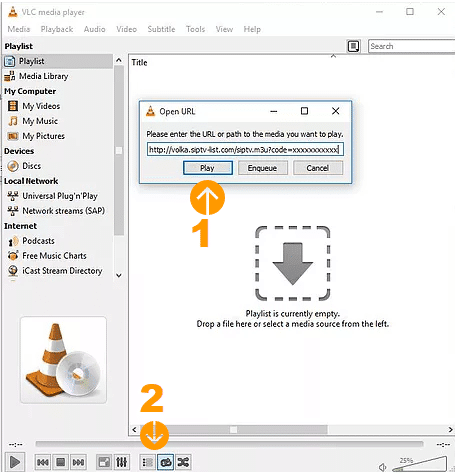
On Windows, open VLC and press Ctrl+V. VLC opens its Open URL box with the link already filled in; click Play (marked 1 in the screenshot). You can also use Media › Open Network Stream (Ctrl+N) and paste the link there. On a Mac, use File › Open Network.
Step 4: Find the full channel list
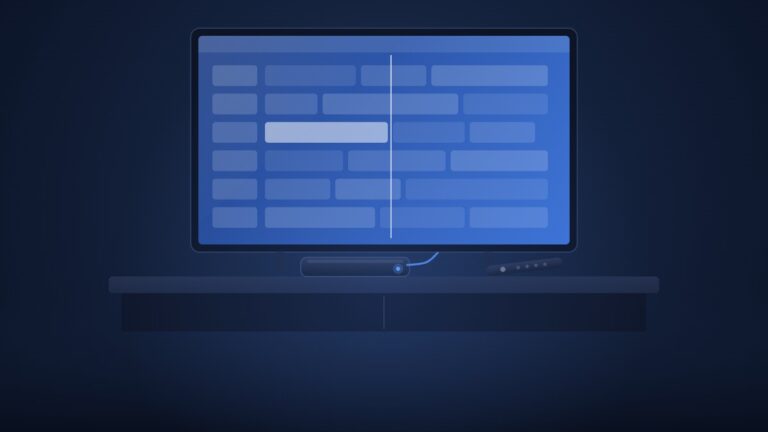
The first channel starts playing. To see every channel in the playlist, click the playlist button (marked 2) or press Ctrl+L, then double-click the channel you want.
Like every player, VLC contains no channels of its own: it only plays what your playlist points to. If channels play in VLC but stutter in your usual app, our stream performance guide helps you narrow down why.
FAQ
Is VLC free?
Yes. VLC is free and open-source software from VideoLAN, a non-profit project, and it carries no ads. Download it from videolan.org.
Can VLC log in with Xtream Codes?
No. VLC opens M3U links and playlist files; it has no screen for a username, password and server address. If your details are Xtream Codes, ask us for the M3U version of your link, or use a player that accepts Xtream logins — our apps guide lists them.
Why does a channel work in VLC but not in my IPTV app?
Then your link and your connection are working, and the difference is the app — its player settings, its cache or the version installed. Check the app’s settings, clear its cache or try another player. Our Windows PC guide uses VLC for exactly this test.