Last reviewed: October 2026.
This guide is for one problem: the stream plays, but it stutters, freezes, drops to a lower picture quality or stops for a few seconds at a time. If it will not log in at all, that is a different problem and our IPTV setup hub for Canada covers it. If you are still deciding which player to use, the apps guide compares them.
Buffering is simple to describe and annoying to fix. A live stream arrives as a steady flow of small pieces of video; your player keeps a few seconds in reserve and plays from that reserve. When the pieces stop arriving faster than they are played, the reserve runs dry and the picture pauses until it refills. Every fix on this page is about one thing: making sure the pieces arrive on time, all the way from the server to your screen.
Work out where the problem is before you change anything
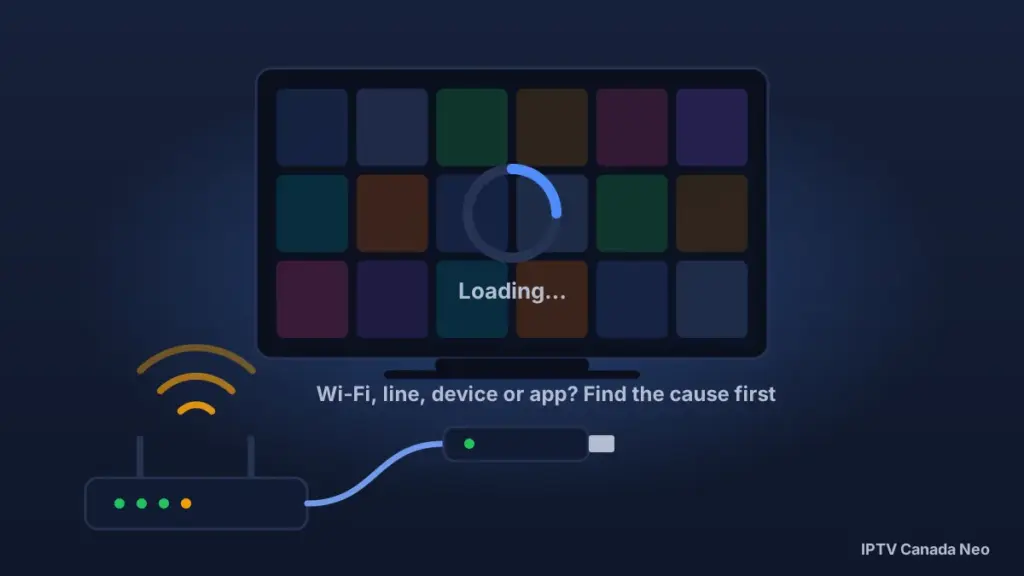
Most buffering advice fails because it is applied blind. The same symptom can come from four different places, and a fix for one does nothing for the others. Three quick observations narrow it down in under five minutes, and each points you to the section you actually need.
One channel or every channel?
Play three or four channels from different categories for a minute each. If only one of them struggles while the others are smooth, your connection is fine — the problem is that one stream at the source. There is nothing on your side to fix; skip to when it is the service. If everything struggles equally, the problem is somewhere between the internet and your screen, and the next two questions find it.
One device or every device?
Open the same channel on a second device — a phone on the same Wi-Fi is enough. If the phone is smooth and the TV is not, the fault is in the TV, the stick or the app, not your internet. If both struggle, look at your home network and your line.
Evenings only, or all day?
If it plays perfectly at 10 a.m. and badly at 8 p.m., something is busier in the evening. That is usually your own household's Wi-Fi, occasionally the route between you and the server, and less often than people assume the ISP line itself — more on that below.
Swipe sideways to see the whole table.
| What you see | Most likely layer | Two tests to run | Go to |
|---|---|---|---|
| One channel stutters, the rest are fine | The stream at the source | Try the same channel an hour later; try it on a second device | The service |
| Everything stutters, but only on the TV | Device or app | Restart the device; play the same channel on a phone | Device · App |
| Everything stutters on every device, mostly evenings | Home Wi-Fi | Run a speed test at the TV and another beside the router; try Ethernet | Wi-Fi |
| Everything stutters on every device, any time of day | Your line, or the route to the server | Speed test at the router; compare with and without a VPN | Line · VPN |
| Picture is fine but drops to low quality | Not enough bandwidth reaching the player | Speed test at the TV; check what else is streaming in the house | Line · Wi-Fi |
| Plays for minutes, then freezes and needs a restart | Device memory or heat | Feel the stick; note how long it runs before freezing | Device |
The four layers a stream passes through
Every piece of video makes the same trip. Knowing the stops makes the rest of this page easier to use, because each section below belongs to exactly one of them.
Where the stream originates. If a single channel is bad and everything else is good, it is here — and only the service can fix it.
The connection your ISP delivers to the router. It is measured at the router, and in Canada it is usually not the weak link.
Everything between the router and the TV: Wi-Fi bands, walls, distance, and whatever else in the house is using the connection right now.
The stick, box or TV, and the player running on it. Memory, heat, age and a handful of player settings live here.
Your internet line: what speed you actually need
The numbers, and where they come from
There is no single figure for "the speed IPTV needs", because a stream's appetite depends on its resolution, how it was encoded and how the service is delivering it that day. The most useful published reference is Netflix's own guidance for its service: 3 Mbps or higher for HD, 5 Mbps or higher for Full HD, and 15 Mbps or higher for 4K (Netflix help centre, checked October 2026). Those are Netflix's recommendations for Netflix, which is heavily compressed — not minimums for IPTV. Live television streams are generally delivered with less compression than an on-demand library, so treat them as a floor, not a target.
For troubleshooting on our service, a practical rule of thumb — ours, not a sourced requirement — is that a speed test at the TV comfortably above 25 Mbps leaves room for a Full HD live stream plus the rest of the household, and that a 4K stream wants noticeably more headroom again. If your test at the TV is in single digits, the line is not the first thing to look at; the Wi-Fi is.
For context, the CRTC's universal service objective for fixed broadband is 50 Mbps download and 10 Mbps upload, with an unlimited data option. A plan at or above that level has headroom for one 4K stream with the rest of the household online, which is why the line is rarely the bottleneck for a single stream.
Sources: Netflix Help Center – recommended internet speeds · CRTC – universal service objective
Test at the router, then at the TV
- Run a speed test on a laptop or phone standing next to the router, ideally plugged in by Ethernet. This is what your ISP is actually delivering.
- Run the same test on the TV, stick or box itself — most have a browser or a speed-test app — or on a phone standing where the TV is.
- Compare. A large gap between the two numbers is a home-network problem, not a line problem, and the Wi-Fi section is where to go. Two similar, low numbers point at the line or the plan.
Why evening slowdowns are usually not your ISP
The old advice — that Canadian connections degrade every evening between six and ten — does not hold up against measurement. The CRTC's Measuring Broadband Canada project placed test units in more than two thousand Canadian homes and found that download speeds "were not found to decrease significantly during peak hours", with most ISPs seeing an average drop "in the order of 1 to 2 percentage points" in the 7 p.m. to 11 p.m. window, and delivered speeds at or above the advertised rate across regions.
Two honest caveats. That is a population-level result from October 2019 — your ISP on your street this week can still have a bad night, and a congested neighbourhood node is a real thing. And the test units sit between the modem and the home's devices, connected by cable, so they measure the line and not what reaches a TV over Wi-Fi. Which is exactly the point: when the stream is fine at noon and bad at 8 p.m., the evidence says to look first at what else in your house is using the Wi-Fi at 8 p.m., not at the ISP.
The CRTC's later Measuring Broadband Canada Phase 3 test (fixed-wireless 50/10 Mbps plans, January–February 2024) found the same pattern: 51 Mbps averaged over 24 hours against 48 Mbps in the 7–11 p.m. peak, a dip of about 6%.
Sources: CRTC – Measuring Broadband Canada (data collected October 2019) · CRTC – Measuring Broadband Canada Phase 3 (fixed wireless, January–February 2024)
Home Wi-Fi: the usual culprit
If your two speed tests disagree, this is the section. Wi-Fi loses speed to distance, walls, floors and competition from other devices, and a TV in a different room from the router can easily receive a fraction of what the router is being given.
2.4 GHz versus 5 GHz
Most routers broadcast two networks. The 2.4 GHz band travels further and through walls better but is slower and shared with everything from microwaves to the neighbours' routers. The 5 GHz band is faster and cleaner but fades with distance. If your router shows them as two names, connect the TV to the 5 GHz one when the TV is in the same room or one wall away, and test the 2.4 GHz one when it is further. If the router combines them under one name, it chooses for you, and you can usually split them in its settings.
Distance, walls and floors
Each interior wall costs signal; a floor costs more; a brick or concrete wall, a fridge or a large mirror between the router and the TV costs the most. A router in a basement utility room serving a TV on the second floor is the classic Canadian layout that produces evening buffering — everyone is home, every device is competing for a signal that was weak to begin with.
Ethernet, and what to do when the router is in the basement
A cable from the router to the TV removes the Wi-Fi layer entirely and is the single most reliable fix on this page. Where running a cable is impractical, the usual options are moving the router to a central, elevated spot, adding a mesh node or access point closer to the TV, or using powerline or MoCA adapters that carry the connection over the house's existing electrical or coax wiring. Each has trade-offs and none is guaranteed; the test is the same as always — speed test at the TV before and after.
The device: memory, heat and age
Restart, then clear the player's cache
A restart clears memory that the player has been holding for hours or days, and it fixes more "sudden" buffering than any setting. Unplug the stick or box for thirty seconds rather than using a sleep button. If restarting helps but the problem returns within a day, clear the player app's cache from the device's app settings — once. Clearing it repeatedly does nothing a single clear did not already do.
When the stick is the bottleneck
Entry-level streaming sticks and older smart TVs have little memory and modest processors, and a live stream in Full HD with a large channel list and a busy programme guide can be more than they handle, especially once the device runs warm. The tell is a stream that starts well and degrades after twenty or thirty minutes, or a device that freezes and needs a restart. If a phone on the same Wi-Fi plays the same channel smoothly, the device is the layer at fault. The reverse case — smooth on the TV, rough on the phone — is usually the phone’s own connection, and our iPhone, iPad and Apple TV guide covers the iOS settings behind it. Our IPTV box guide for Canada covers what to consider before replacing one.
The player app: settings that change playback
Buffer size
Most players let you set how many seconds of video are held in reserve before playback starts. A larger buffer smooths over short interruptions at the cost of a longer wait when you change channel. Look for it in the player's playback or player settings, raise it one step, watch for ten minutes, and only then raise it again. Very large values do not help a connection that is genuinely too slow; they just delay the stall.
Hardware versus software decoding
Players usually offer a choice between the device's hardware video decoder and a software decoder. Hardware decoding is lighter on the device and is the right default. If a particular channel shows a green or garbled picture, or audio without video, try the software decoder for that channel; if everything stutters, try switching back to hardware. This is a per-app setting, and the two choices do behave differently on different sticks.
Playlist size and guide load
A player that loads a very large channel list and a full programme guide every time it opens uses memory before a single stream has started. Turning off automatic guide updates, or lengthening the update interval, is a legitimate fix on smaller devices. On our service we can also shape a customer's playlist around the countries they want to watch and remove ones they do not, where that applies — a smaller list is lighter to load. Ask support if that would help; it is not a setting you configure yourself at checkout.
Try a different player
If the same channel is smooth in one player and rough in another on the same device, the player is the variable. That is a legitimate reason to switch, and the apps guide explains what each one does well without ranking them. Whichever you use, add the same login details — the service does not change, only the software reading it.
Does a VPN help with buffering?
Sometimes, and less often than the internet suggests. A VPN routes your traffic through another server before it reaches ours, which adds a hop and normally costs some speed. It helps only in the specific case where the direct route between your network and the stream is the problem — a poor path, or a restriction on that network or its IP address — and the way to know is to test, not to assume.
The honest sequence: test the service normally first, with no VPN. If everything is smooth, you do not need one. If everything is rough on every device and both speed tests are healthy, a VPN is worth testing as one variable — same channel, same device, with and without, a few minutes each. If it is clearly better with the VPN on, the route was the problem. If it is the same or worse, turn it off; it is not helping.
A VPN is not a universal fix, and slow streaming is not evidence that your provider is interfering with anything. Where a Canadian court has ordered specific servers blocked, that is a matter of law rather than performance, and our guide to IPTV and Canadian law explains what those orders are and are not.
What will not fix it
- Changing DNS servers. DNS resolves names to addresses before a stream starts. It has no effect on how fast video arrives once it is playing.
- Reinstalling the same app repeatedly. One reinstall can clear a corrupted install. A fifth reinstall does what the first did.
- "Booster" or "optimizer" apps. Nothing running on the same stick can make the Wi-Fi signal stronger or the line faster; at best it closes other apps, which a restart already does.
- Clearing the cache every day. If the cache needs clearing daily, the device is short of memory, and the fix is in the device section, not in the routine.
- Raising the buffer to the maximum. This delays the stall instead of preventing it and makes every channel change slower.
When it is the service, and what to tell support
If one channel is bad while others are good, or if every test above is healthy and every device still struggles at the same time of day, the problem may be at the source, and that is on us to look at. A useful report lets us reproduce it. Send:
- the channel name and the time you watched it, in your local time zone;
- the device and the player app you used;
- whether the TV is on Wi-Fi or Ethernet;
- the speed test result at the TV;
- whether a second device on the same network shows the same thing.
Tell us what you found
With those five details we can tell quickly whether the stream, the route or your setup is the cause. Support is available in English and French.
Buffering questions Canadians ask
How do I get my IPTV to stop buffering?
Find the layer first. Check whether it is one channel or all of them, one device or all of them, and evenings only or all day. Then apply the fix for that layer: the service for one bad channel, a restart or a different player for one bad device, Wi-Fi changes or Ethernet for evening-only trouble on every device.
Why is my IPTV freezing or buffering?
Because video pieces are arriving slower than they are being played. The delay can come from the stream's source, your ISP line, your home Wi-Fi, or the device and app — and the symptom looks the same in every case, which is why diagnosing before fixing matters.
Why is IPTV lagging so much in the evening?
Usually because the household's Wi-Fi is busiest then. Canadian measurement by the CRTC found ISP lines themselves lose only a percentage point or two at peak on average, so the first suspect is what else is on your Wi-Fi at 8 p.m., and the first test is Ethernet.
What internet speed do I need for IPTV?
There is no universal figure; it depends on resolution, encoding and the service. Netflix publishes 3, 5 and 15 Mbps for HD, Full HD and 4K on its own compressed service, and live streams generally need more headroom than that. As a practical troubleshooting rule, a test at the TV comfortably above 25 Mbps should not be the cause of Full HD buffering.
Does a VPN help with IPTV buffering?
Only when the route between your network and the stream is the problem, and only testing will tell you. Try the service without a VPN first; if everything else checks out, compare the same channel with and without one. It usually costs some speed rather than adding any.
What buffer size should I use?
One step above the default, then re-test. A larger buffer smooths short interruptions but lengthens channel changes, and the maximum setting only delays a stall on a connection that is really too slow.
Why does only one channel buffer?
Because that stream is struggling at its source. Nothing on your side will change it; try again later and report the channel and time to support so it can be checked.
Should I use Wi-Fi or Ethernet for IPTV?
Ethernet whenever the router and the TV are close enough to cable. It removes the layer where most Canadian evening buffering happens. If a cable is impractical, the 5 GHz band in the same room, or a mesh node near the TV, is the next best thing.
Is Canada blocking IPTV?
Canadian courts have issued orders requiring ISPs to block specific servers tied to unauthorised services; there is no general block on the technology. That is a legal question rather than a performance one, and our Canadian legal guide explains the orders in detail.