
This is the detailed IPTV Smarters guide. If you are not sure which app or login type your device needs, start with our IPTV setup hub for Canada and come back here for the step-by-step. If you have not settled on an app yet, we compare the players that run on Windows in our apps guide, and our Windows PC setup guide covers the Store-versus-installer question and the Windows settings that affect playback.
IPTV Smarters Expert is a Windows IPTV player in the Microsoft Store, from a publisher that lists itself as IPTV Smarters Expert. Despite the similar name, it is not IPTV Smarters Pro and is not published by WHMCS Smarters, the company behind IPTV Smarters Pro and Smarters Player Lite. Features and instructions for those apps don’t necessarily apply here.
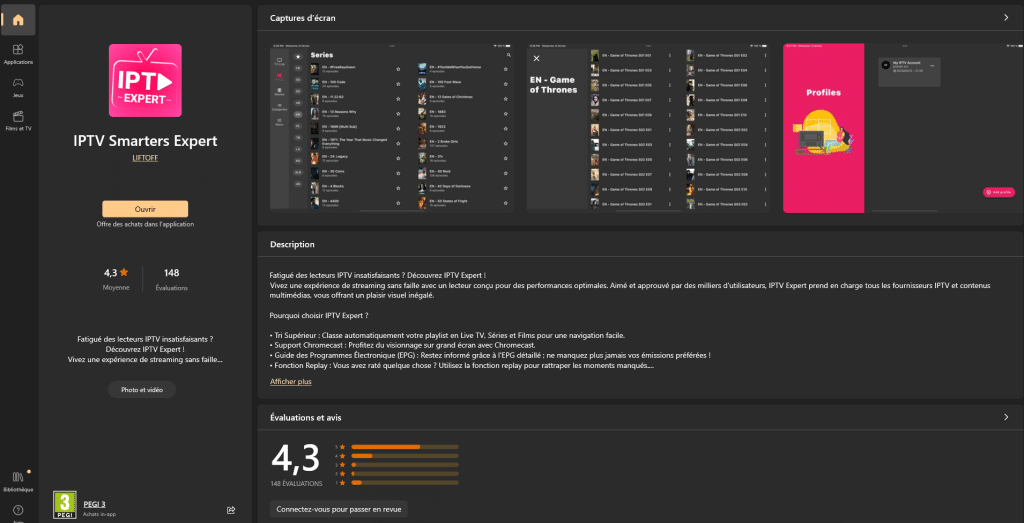
What is IPTV Smarters Expert?
It is a player: it organises and plays the playlist your IPTV provider gives you. Its Microsoft Store listing states that the app does not provide any media content.
What it supports
According to its Microsoft Store listing, IPTV Smarters Expert offers:
- Playlist import by M3U/M3U8 link, Xtream Codes API login or Stalker portal
- Automatic sorting into Live TV, Series and Movies
- An electronic programme guide (EPG)
- Replay of programmes you missed, where your provider supports it
- Chromecast support
- Several provider profiles in one app
- Picture-in-picture
- Subtitles, language filtering and search
Which devices it runs on
This guide covers the Windows app from the Microsoft Store. The listing also mentions casting to Chromecast and smart TVs. For other platforms, check the publisher’s own website, and watch out for look-alike apps with similar names.
How to install and set up IPTV Smarters Expert on Windows
- Open the Microsoft Store on your PC and search for IPTV Smarters Expert, or use the direct Store link. Check that the publisher shown is IPTV Smarters Expert.
- Install the app. It is free; the Premium upgrade is an optional in-app purchase.
- Open the app once the installation is complete.
- Find your login details in your IPTV Canada Neo welcome email: the M3U link, or the Xtream Codes username, password and server address.
- In the app, add a new playlist, choose the login type that matches your details, paste them in and save.
- Wait while the playlist downloads. Your channels then appear under Live TV, with films and series in their own sections.
If playback stutters once everything is loaded, work through our stream performance guide before changing apps.
Privacy and VPNs
Keep your login details private: anyone with your M3U link or Xtream password can use your subscription.
A VPN encrypts your traffic and routes it through another server. That can help with privacy on shared or public Wi-Fi, and it is sometimes worth testing as one variable when a poor network route is causing problems. It also adds a hop that usually costs some speed. Our stream performance guide explains how to test it fairly.
FAQ
Is IPTV Smarters Expert the same app as IPTV Smarters Pro?
No. IPTV Smarters Expert is listed in the Microsoft Store under its own publisher, IPTV Smarters Expert. IPTV Smarters Pro and Smarters Player Lite come from a different company, WHMCS Smarters. The names are similar, but the apps, their features and their support are separate.
Is IPTV Smarters Expert free?
It is free to download from the Microsoft Store. According to the listing, an optional Premium in-app purchase removes ads and watermarks and adds automatic playlist updates and a dark mode.
Which login types does it accept?
An M3U or M3U8 playlist link, an Xtream Codes API login (username, password and server address) or a Stalker portal, according to its Store listing. Use whichever type your provider sent you.
Does IPTV Smarters Expert include channels?
No. The Store listing states that the app does not provide any media content; you add the playlist from your IPTV provider. Whether a particular service is lawful depends on the service and its content, not on the player — our guide to IPTV and Canadian law explains what the law looks at.