This is the detailed Smart IPTV guide. If you are not sure which app or login type your device needs, start with our IPTV setup hub for Canada and come back here for the step-by-step. Our apps guide explains how Smart IPTV compares with the other TV-store apps before you commit to the activation fee.
Smart IPTV, often shortened to SIPTV, is a player app for smart TVs. It shows the channels from a playlist you upload and has no channels of its own. This guide covers which devices it runs on, how to install and activate it, and how to add your IPTV Canada Neo playlist.
What Smart IPTV is
Smart IPTV plays live channels from an M3U playlist, with an on-screen programme guide when EPG data is available. The developer is explicit that the app is only a media player: no channels come with the app, and paying for activation doesn’t add any.
- Programme guide (EPG): matched to your channels by country, and the Android version can also use several external EPG sources.
- More than one playlist: the developer’s upload page can combine several playlists.
- Search and favourites: the latest versions for LG, Samsung and Android devices add channel and guide search and favourites editing.
Which devices Smart IPTV runs on
According to the developer’s site, siptv.app, Smart IPTV is currently available for:
- LG smart TVs: from the LG app store (the developer points to the Entertainment category), with one version for webOS 3.0 and later and another for older Netcast and webOS 1.0–2.0 sets.
- Samsung smart TVs running Tizen 6.5 or later (2022 and newer models), from the Samsung app store.
- Android TV, Google TV and Amazon Fire TV devices: from Google Play on Android TV, or installed manually from the developer’s own download.
It is not listed for iPhone, iPad, Apple TV, Windows, Mac, Roku or Chromecast. On a phone, tablet or computer, use one of the players in our apps guide instead; IPTV Canada Neo does not support Roku. If your TV isn’t on the list at all, a streaming box is the usual fix — our IPTV box guide compares them.
How to install Smart IPTV
On a Samsung or LG TV
- Make sure the TV is connected to the internet.
- Open the TV’s app store — Apps in Samsung’s Smart Hub, or the LG Content Store.
- Search for Smart IPTV, install it and open it.
- Note the MAC address the app shows on screen. You need it for activation and for your playlist.
On Android TV, Google TV or Fire TV
On an Android TV device, install Smart IPTV from Google Play. If Google Play says it isn’t compatible with your device, or you are using a Fire TV, the developer’s Android instructions describe a manual install: type apk.siptv.app into the Downloader app, or into the device’s web browser.
How to activate Smart IPTV
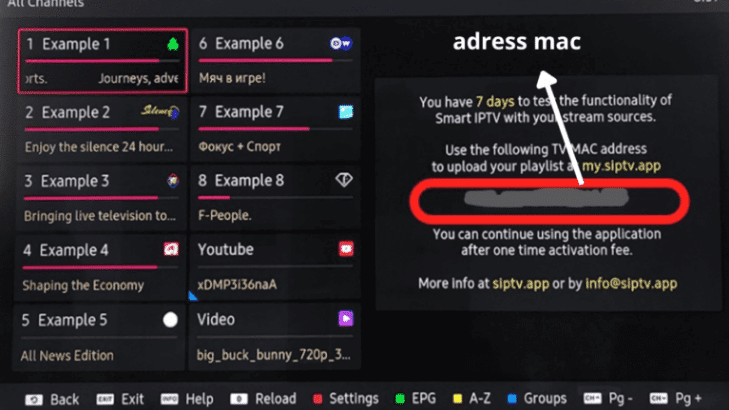
Smart IPTV is a paid app. The developer charges a one-time activation fee of €5.49 for each TV or device, paid on its activation page. The fee can change, so check the page before you pay. Because activation is tied to the device, a new TV needs its own activation.
The developer asks you not to pay unless you already have a playlist to use: no channels come with activation, and paying won’t fix a playlist that isn’t working.
- Open Smart IPTV and write down the MAC address on screen, or take a photo of it.
- On a phone or computer, open siptv.app/activation.
- Enter the MAC address, choose one of the payment options shown on the page and complete the payment.
- Restart the app on your TV.
How to add your IPTV playlist
Smart IPTV shows nothing until you add a playlist. With IPTV Canada Neo, the M3U link is in the welcome email you receive after choosing one of our plans.
- Go to the developer’s playlist upload page, siptv.app/mylist.
- Enter your TV’s MAC address — the same one you used for activation.
- Paste your M3U link in the URL field, or upload the playlist file. Choose Canada as the EPG country if you want the programme guide matched to Canadian channels.
- Send the form, then restart Smart IPTV on the TV.
- The channels load automatically. On LG TVs, the developer lists the yellow button for all channels and the blue button for channel groups.
If the channels don’t load
- Restart the app after uploading. The playlist is loaded when Smart IPTV opens.
- On a Samsung TV, the developer suggests resetting Smart Hub, or turning the TV off and back on so its cache is cleared.
- A very large playlist can exceed the memory TVs set aside for apps. The upload page has a Save online option for exactly this case.
- Lock your MAC/ID in the app’s settings, as the developer recommends, so nobody else can reset the playlist attached to your TV.
- Channels play but buffer: see our stream performance guide.