This is the page for watching our service on a Windows 10 or Windows 11 desktop or laptop: which of the players we support runs on Windows, which login each one accepts, how to install from the Microsoft Store without picking up a similarly named app from a different publisher, and the handful of Windows settings that decide whether a stream stays smooth. It does not compare or rank players — our guide to IPTV apps in Canada does that — and if you are not yet sure what an IPTV login is, the IPTV setup hub for Canada is the place to start.
The usual reminder applies on a PC as much as on a television: the apps below are players. The Microsoft Store listing for the one we use most says it plainly — “No IPTV channels or streaming URLs are provided” — and that is true of every player on this page. The channels come from your subscription with our IPTV service for Canada; the software only displays them.
Before you install anything: which login were you sent?
Your welcome email carries one of two kinds of login for a computer, and the kind decides which app to install and where to type things.
Xtream Codes on Windows
A server address, a username and a password. You enter them into a login form inside the player and it fetches the channel list, the programme guide and the on-demand library by itself. On Windows, the player we support whose Store listing documents this is MyIPTV Player.
An M3U link on Windows
One long web address pointing at your playlist. MyIPTV Player takes it directly; Ibo Player Pro takes it through the developer’s website; VLC will open it as a network stream, which is useful for one specific purpose explained below.
MAC address and portal — not on a PC
The third login type belongs to set-top boxes and certain television apps. Neither Windows player on this page is a portal-style app, so if the only login you have is a MAC-and-portal one, ask support for the same subscription as Xtream Codes or an M3U link before you install anything.
Swipe sideways to see the whole table.
| Player | Login it accepts, as listed on the Microsoft Store | How it is added | What it costs |
|---|---|---|---|
| MyIPTV Player | Xtream Codes (with catch-up) and M3U playlists | Inside the app | Free |
| Ibo Player Pro for Windows | M3U playlist | Through the developer’s website, then activated in the app | Free for a one-week trial, then device activation |
| VLC media player | Opens an M3U link as a network stream | Media → Open Network Stream | Free and open source |
Capabilities and pricing from the Microsoft Store listings and videolan.org on 22 September 2026; Store listings can change, and the listing is always the current word.
Microsoft Store or an installer, and how to check the publisher
Why the Store is the safer route on Windows
Unlike an iPhone, a Windows PC will run any installer you download, which is exactly the problem: search the web for an IPTV player “for Windows” and the first results are download mirrors and installers of uncertain origin. The Microsoft Store removes most of that risk — apps are signed, updated automatically and uninstalled cleanly — so both players we support on Windows are installed from the Store, and the only download on this page is VLC from its own website.
The players we support on Windows
- MyIPTV Player — publisher shown on the Store as VBF Net Apps. Microsoft Store listing.
- Ibo Player Pro for Windows — the listing’s developer link is iboproapp.com, the same developer whose ibo Pro Player we support on Apple devices. Microsoft Store listing.
- VLC media player — from videolan.org only, currently version 3.0.24.
Smarters-branded apps from other publishers
Search the Store for “Smarters” and you will find several apps with that word in the name — “Smarters IPTV Pro”, “IPTV Smarters Lite” and others — from publishers whose developer links point at websites unrelated to the company that makes IPTV Smarters Pro. That is also the honest answer to the common question why can’t I download IPTV Smarters Pro?: the developer distributes its Windows build from its own site rather than the Store, and the Store results are other products borrowing the name. We do not document the developer’s Windows build here because we could not verify it from the developer’s own page at the time of writing, and we will not point you at a mirror instead.
The quick test on any Store listing: read the publisher line and the developer’s website link, not the app title; check that the description says no channels or content are included; and close anything that sells “channels”, “premium channels” or “subscriptions” as an in-app purchase.
MyIPTV Player: Xtream Codes or an M3U link
This is the one Windows player we support that documents both logins. Its listing states “Xtream Code support with Catchup”, M3U playlists from “storage or remote source”, a built-in guide, favourites, channel-group filtering, PIN protection, and a choice of playback engine between the VLC library and Windows Media Player. It also carries the clearest disclaimer on the Store: “No IPTV channels or streaming URLs are provided. We are not affiliated to any IPTV operators.”
Adding an Xtream Codes account
- Install it from the Store listing above and open it. Choose the option to add an Xtream source.
- Enter the server address exactly as sent, including any port number, then the username and password. Copy and paste from the email rather than retyping.
- Save and let it load. The first fetch pulls every channel and the guide, which takes longer on a large playlist; later launches are quicker.
Adding an M3U playlist and the guide
If you were sent an M3U link, add it as a remote playlist instead. The programme guide is a separate XMLTV address; if one was included in your welcome email, add it in the EPG settings so the guide fills in.
Catch-up, filtering and the playback engine
Catch-up appears for channels where the playlist provides it — the app cannot add it to a channel that does not carry it. Channel-group filtering hides whole categories you never watch, which on a full playlist is the single most useful setting on a PC. If a channel plays badly, switching the playback engine between the VLC library and Windows Media Player is a legitimate first try; the two decode differently on different graphics hardware.
Ibo Player Pro on Windows: trial, upload, activate
Identifying the genuine app by its developer
Ibo-branded players are a naming minefield. On Windows the app from the developer we support is listed as Ibo Player Pro, with a developer link to iboproapp.com — the same site that publishes ibo Pro Player for Apple devices. On the Apple App Store, confusingly, a different seller uses the name “Ibo Player Pro”. So on any platform, identify the app by the developer’s website on the listing, never by the name alone. Our IBO Pro Player guide goes into the family in detail.
Uploading the playlist
The Store listing describes an M3U player with favourites and parental controls; it does not describe an in-app login form. Playlists for this developer’s apps are attached through its website, iboproapp.com, against the device — follow the instructions the app shows you on first launch and the developer’s upload page.
The one-week trial and the activation
The listing states: “Users can use the application without any limitations during the trial (1 week). Once the trial period has expired, the user needs to activate the device.” Activation is per device. On our VIP plan we can cover activation for this developer’s app where that applies, and only for this developer’s app — ask support before paying so it is handled the right way round.
VLC: the two-minute test that tells you whether it is the app or the login
VLC is not a daily IPTV interface — it has no guide, no favourites and no channel manager, and our VLC guide explains its limits. It is, however, the best diagnostic tool on a Windows PC. Install it from videolan.org, open Media → Open Network Stream, paste your M3U link, and play. If channels play in VLC and not in your player, the login is fine and the player or its settings are the problem. If nothing plays in VLC either, the link or the connection is the problem, and no amount of player-switching will help.
On a Mac the same test works with the macOS build of VLC, and for a daily player on macOS the Mac-capable apps are covered on our iPhone, iPad and Apple TV guide. This page stays with Windows.
Getting the picture onto a television from a PC
HDMI from a laptop
The most reliable route by a wide margin. An HDMI cable from the laptop to the television, Windows set to duplicate or extend the display, and the player full-screen on the TV. Nothing wireless, nothing to buffer twice.
Wireless display and why it stutters
Windows can project the whole screen to a television that supports Miracast. It works, but it encodes the screen in real time and sends it over the same Wi-Fi the stream is arriving on, so a picture that is smooth on the laptop can stutter on the TV even though nothing is wrong with the service. If the TV shows the stutter and the laptop screen does not, that is the wireless link, not the stream.
When a stick or box is the better answer
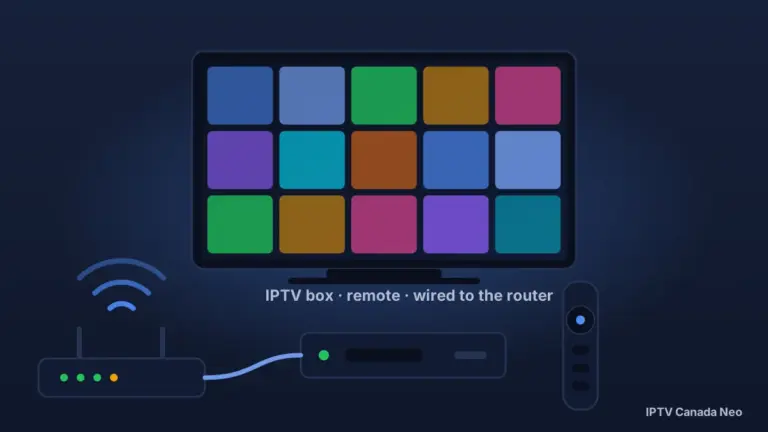
If the goal is watching on the television every evening, a PC is the awkward way to get there. A streaming stick or a dedicated box plugged into the TV is cheaper to run and simpler to live with; our IPTV box guide for Canada covers the choice.
Windows-specific reasons a stream stutters
Most buffering is not Windows-specific and our guide to IPTV buffering in Canada is the place to diagnose it layer by layer. A PC does add four causes of its own, and each has a check you can do in a minute.
A laptop on Wi-Fi versus a desktop on Ethernet
A laptop is usually the furthest device in the house from the router and is often on the 2.4 GHz band because that is what reached it. Run a speed test on the laptop where you watch, then plug it into the router by cable and run it again; the gap is what the Wi-Fi is costing you.
Power plans, battery saver and background throttling
On battery, Windows can slow the processor and throttle background work to save power, and a laptop on a “Best power efficiency” setting will decode video less willingly than one plugged in on “Best performance”. If a stream is smooth on mains and stutters on battery, it is the power setting, not the connection.
Hardware decoding and the graphics driver
Players decode video either on the graphics hardware or in software on the processor. Hardware decoding is lighter and is the right default, but an outdated graphics driver can make it worse than software. If the picture tears, freezes or shows green blocks, try the other decoder in the player’s settings — in MyIPTV Player, switching engine between the VLC library and Windows Media Player does this — and update the graphics driver from the manufacturer.
Windows Update and antivirus scans mid-stream
A scheduled scan or an update download in the background competes with the stream for both the connection and the processor. If stutter arrives at the same time each evening on the PC only, look at what Windows has scheduled for that hour before looking anywhere else.
Try it on the PC you actually use
The free trial runs on one device, and a laptop is the quickest place to confirm that the login you were sent works with the player you chose before you set anything up on a television.
Windows PC questions Canadians ask
How can I watch IPTV on my Windows computer?
Install a player from the Microsoft Store — MyIPTV Player if you were sent Xtream Codes or an M3U link, Ibo Player Pro if you were sent an M3U link and prefer that developer’s app — then add the login from your welcome email. The player displays the channels; the subscription supplies them.
Can I get IPTV on my PC without installing anything?
Not usefully. VLC, which most PCs already have, will open an M3U link as a network stream and is a good test, but it has no guide or channel manager. A proper player from the Store takes two minutes to install.
Is there a free IPTV player for Windows 11?
MyIPTV Player is free on the Microsoft Store, and Ibo Player Pro is free for a one-week trial before activation. No player includes television; a listing that offers channels is selling something other than a player, and it is not something we support.
Why can’t I download IPTV Smarters Pro on Windows?
Because the developer distributes its Windows build from its own website rather than the Microsoft Store, and the Store apps named “Smarters” come from other publishers. We have not documented the developer’s Windows build here because we could not verify it from the developer’s own page, and we do not recommend download mirrors.
Does IPTV work on Windows 10?
Yes. Both players on this page are installed from the Microsoft Store on Windows 10 and 11. Older versions of Windows are out of support and we do not recommend running a streaming setup on them.
Can I record IPTV on Windows?
Neither Store listing documents recording of live channels. MyIPTV Player lists catch-up for channels that provide it and downloading of on-demand titles; treat both players as live players first.
Do I need a VPN for IPTV on a PC in Canada?
Not as a rule. Test the service without one first; a VPN adds a hop and usually costs speed. It is worth trying only where a specific network or route is the problem, and the buffering guide explains how to test that rather than assume it.
Is Canada blocking IPTV?
Canadian courts have ordered internet providers to block specific servers tied to unauthorised services; there is no general block on the technology or on these players. Our guide to IPTV and Canadian law explains what those orders cover.